Buying an OLED television for PlayStation 5 gaming comes with one question that rarely appears in the excitement surrounding perfect blacks, fast response times and HDR picture quality: what happens when the same gaming interface stays on the screen for hundreds of hours?
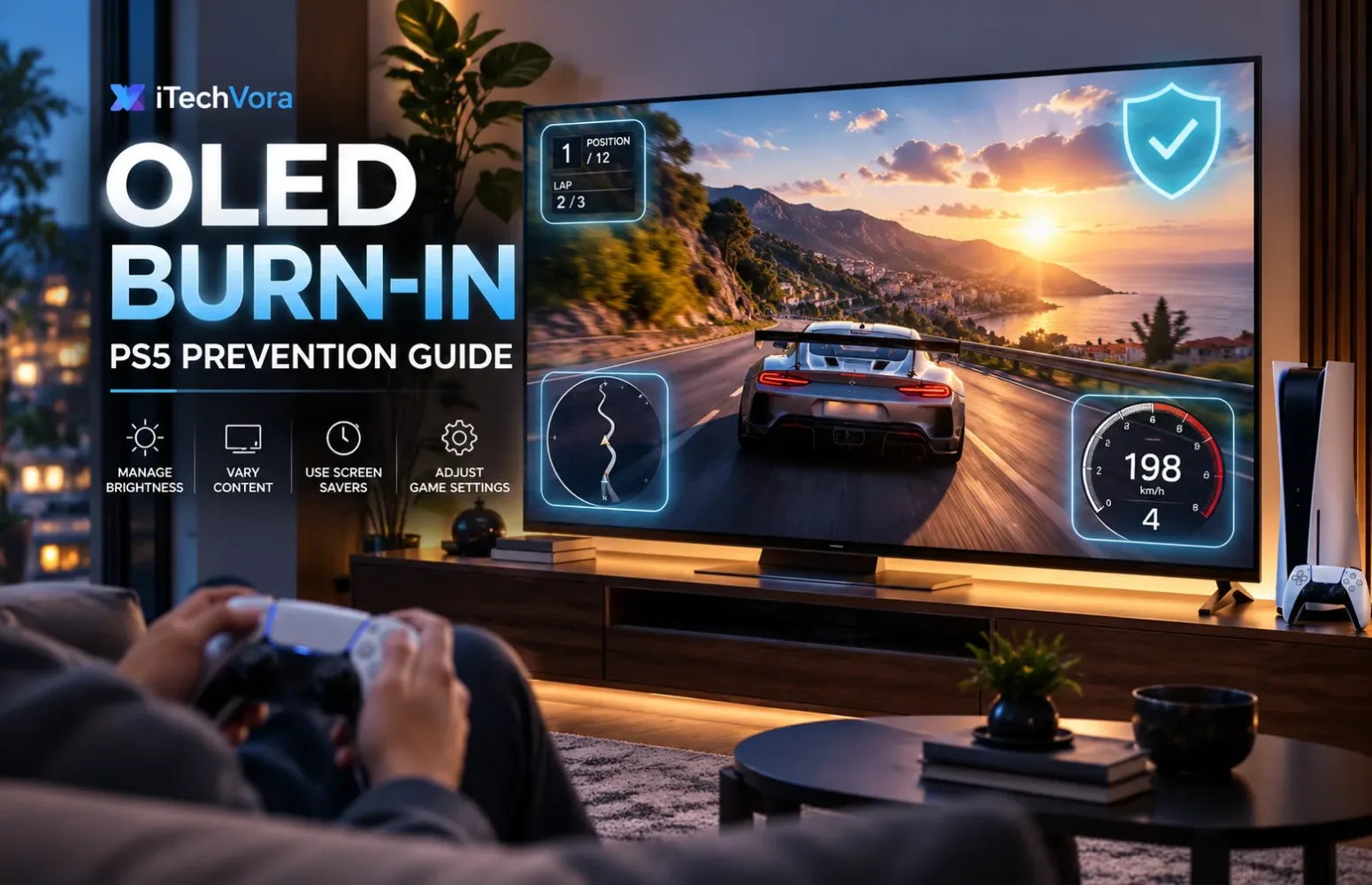
A health bar may barely move. A racing game’s speedometer occupies the same corner throughout every race. In an open-world adventure, the minimap might remain visible for an entire playthrough.
These small details matter because OLED pixels generate their own light. Over time, pixels displaying consistently bright, fixed elements can age differently from those showing constantly changing scenery.
The good news is that OLED burn-in is not inevitable simply because you play games on a PS5. Modern OLED televisions include protective features, and sensible viewing habits can reduce the risk considerably.
The important part is understanding which precautions genuinely help, which settings deserve attention and when OLED might not be the best choice for your gaming habits.
Quick Answer: How to Reduce OLED Burn-In While Gaming
If you already own an OLED TV, start with these precautions:
- Keep the television’s Pixel Shift or Screen Move feature enabled.
- Activate logo brightness reduction where available.
- Allow automatic panel maintenance to complete after use.
- Avoid unnecessarily high brightness during prolonged sessions with fixed on-screen elements.
- Turn off the screen during extended gaming breaks rather than leaving a paused image displayed.
- Reduce, hide or adjust static HUD elements when games offer those options.
- Mix different games and other viewing content instead of displaying the same interface continuously.
- Configure the PS5’s automatic power-saving settings.
- Avoid repeatedly running manual pixel refresh cycles without a specific reason.
None of these measures guarantees that burn-in will never occur. Together, however, they offer a practical way to manage OLED ownership without abandoning the advantages that make the technology appealing for gaming.
What Is OLED Burn-In, and Why Does Gaming Matter?
Unlike conventional LCD televisions, OLED displays do not depend on a separate backlight to illuminate their pixels. Each pixel produces light individually.
That independence is responsible for OLED’s excellent black-level control and rapid pixel transitions. It also means that the light-emitting materials experience wear over time.
When an area of the screen repeatedly displays the same bright shape, those pixels may accumulate different levels of wear from surrounding pixels.
Eventually, the uneven ageing can become visible when the television displays other content.
There are two related conditions worth separating.
Temporary image retention: A faint outline of previously displayed content remains visible for a short period. It may disappear naturally or after the television performs its normal maintenance.
Permanent burn-in: Uneven pixel ageing produces a persistent pattern that remains visible across different images. Normal panel maintenance cannot reliably reverse the underlying wear.
A faint image remaining on the screen does not necessarily indicate permanent burn-in. Temporary image retention can disappear, whereas damage caused by uneven pixel ageing may persist.
Does OLED Burn-In Still Happen on Modern TVs?
Yes, although the likelihood depends heavily on usage.
RTINGS published an analysis in August 2026 comparing OLED generations under prolonged, static-content testing. Newer panels demonstrated substantial brightness and efficiency improvements, but older OLED models in its accelerated test did not show a consistent advantage over an earlier-generation reference when operated at their respective maximum SDR brightness settings.
The conditions were deliberately demanding, involving thousands of hours of repetitive news-channel content.
That is not equivalent to normal gaming mixed with movies, streaming and other programmes.
Another important limitation is that the accelerated burn-in results did not establish the long-term resistance of the newest 2024–2026 OLED panel generations.
My interpretation is that buyers should neither dismiss burn-in as an outdated problem nor assume that ordinary gaming will inevitably damage their television.
The sensible approach is to examine what stays on the screen and how frequently it appears.
Which PS5 Games Create the Greatest Burn-In Risk?
Not all gaming sessions expose an OLED panel to the same conditions.
A story-driven adventure with changing locations, camera angles and cutscenes typically creates more varied screen content than a competitive game displaying an identical interface every evening.
The concern is not the genre itself. It is the amount of time bright elements remain in fixed positions.
| Gaming situation | Relative concern | Why it matters |
|---|---|---|
| Story-driven game with frequent scene changes | Lower | Much of the image changes naturally |
| Racing game with a permanent speedometer | Higher with heavy repeated use | Dashboard graphics occupy fixed positions |
| Competitive shooter with a fixed HUD | Higher with heavy repeated use | Health, ammunition and minimap elements may remain visible |
| RPG with persistent interface panels | Depends on usage | Repeated interface elements can concentrate wear |
| Paused game left on-screen for hours | Avoidable exposure | The same image remains displayed |
| Mixed gaming, movies and streaming | Generally lower | Different content distributes pixel usage more widely |
These are qualitative comparisons, not measured burn-in probabilities. Brightness, duration, panel characteristics and the specific interface all affect the outcome.
For example, playing Gran Turismo 7 does not automatically make your OLED unsafe. But someone who displays its racing interface for several hours almost every day should pay more attention to static elements than someone who occasionally plays different games.
1. Keep Pixel Shift Enabled on Your OLED TV
Pixel Shift is one of the most useful background protection features.
Depending on the manufacturer, it may be called Pixel Shift, Screen Move or something similar.
The television slightly repositions the displayed image over time. The adjustment is generally small enough that viewers may not notice it during normal gameplay.
The purpose is to prevent fixed image boundaries from continuously occupying precisely the same pixels.
Both LG and Samsung document screen-shifting protection functions on supported OLED televisions.
I would leave this feature enabled rather than disable it to preserve perfectly fixed image positioning.
It does not make permanent HUD elements harmless, but it provides additional protection without requiring you to change how you play.
2. Enable Logo Brightness Reduction
A television’s logo-dimming feature is not limited to ordinary broadcast channels.
Depending on the implementation, it can detect certain persistent bright areas and reduce their brightness.
Samsung calls its feature Adjust Logo Brightness, while LG uses similar terminology on supported models.
For example, Samsung’s supported OLED televisions offer Low and High levels for reducing the brightness of fixed elements.
This is particularly relevant when games display bright interface components against darker scenery.
I would begin with the manufacturer’s standard protective setting. Players who spend exceptionally long periods in games with fixed HUDs can consider stronger logo-dimming protection, if their TV provides the option.
Remember that the feature may not recognise every interface element. It should be treated as an additional safeguard, not a complete solution.
3. Allow Automatic Pixel Cleaning to Finish
OLED televisions often perform maintenance after accumulated viewing time.
These compensation routines help the display manage changes in pixel behaviour and maintain screen uniformity.
On supported LG televisions, automatic Pixel Cleaning operates when the TV is switched off after sufficient use. The precise maintenance schedule and duration vary by model.
This creates one practical rule that is easy to overlook:
Switch your OLED TV off normally using its remote, and avoid immediately disconnecting it from mains power after every gaming session.
Some automatic maintenance routines require the television to remain connected to electricity while in standby.
There is also a difference between normal automatic compensation and a longer manual panel refresh.
Sony specifically warns against performing its manual Panel Refresh more than once per year on applicable OLED models because doing so may affect panel life.
I would not schedule manual refresh cycles after every long gaming session. Let the television handle routine maintenance and follow the manufacturer’s instructions if persistent image retention appears.
4. Use Sensible OLED Brightness Without Ruining HDR Gaming
Brightness matters because generating more light generally places greater demand on OLED pixels.
The relationship becomes particularly relevant when bright, static graphics are displayed repeatedly.
But reducing brightness does not mean switching off every picture-quality feature.
For normal PS5 gaming, HDR can remain enabled when the television and game support it properly.
The distinction is between preserving the intended HDR presentation and continuously forcing the television into unnecessarily aggressive brightness settings.
Consider these adjustments:
- Avoid leaving the television in an excessively bright Vivid picture preset purely for gaming.
- Use the TV’s appropriate Game Mode and follow its HDR calibration guidance.
- Reduce SDR OLED pixel brightness when the room does not require maximum light output.
- Avoid unnecessarily bright static interface elements where separate HUD brightness controls are available.
For a darker room, comfortable SDR brightness may be substantially lower than the television’s maximum capability.
HDR settings require more care because aggressive changes can interfere with highlight reproduction and tone mapping.
Our HDR10 vs HDR10+ vs Dolby Vision comparison explains why HDR presentation depends on more than brightness alone.
5. Do Not Leave Your Game Paused for Hours
A paused PS5 game is an easily avoidable source of static-screen exposure.
Imagine stopping a game to answer a phone call and leaving the television displaying a bright pause menu for the rest of the afternoon.
Nothing on the screen changes, but the OLED pixels continue displaying the same image.
Some televisions activate a screen saver when they detect inactivity. However, an active HDMI input displaying a paused game may not trigger the same behaviour as an idle built-in TV application.
I would therefore avoid relying entirely on the television to recognise a paused console game.
For a short interruption, the practical concern is limited. For an extended break, switch off the television or place the console into its appropriate low-power state and ensure the screen is no longer displaying the static image.
There is no universally established number of minutes after which every OLED panel develops burn-in.
The objective is to avoid unnecessary exposure, not to interrupt gameplay according to an arbitrary timer.
6. Adjust Static HUD Elements When Games Allow It
This is one of the more useful precautions because it addresses the actual source of concentrated pixel wear.
Modern games sometimes provide interface customization options, including:
- Hiding the minimap or compass.
- Reducing HUD opacity.
- Automatically hiding health indicators outside combat.
- Disabling nonessential overlays.
- Adjusting interface brightness or display behaviour.
The availability of these settings varies by game.
I would not compromise useful accessibility or gameplay information simply to protect the television. However, if a game offers an optional minimalist HUD, it may be worth trying.
Story-driven games can sometimes remain perfectly playable with fewer permanent indicators.
Competitive games are different. Information such as ammunition, health and maps may be essential, so changing the interface should remain a personal choice.
7. Configure Automatic Power Saving on Your PS5
Sony provides power-saving controls that can help prevent the console from remaining active unnecessarily.
On PS5, navigate to:
Settings → System → Power Saving → Set Time Until PS5 Enters Rest Mode
Choose appropriate inactivity settings for your usage.
When the console enters Rest Mode, its normal gameplay output stops.
However, the automatic transition depends on console activity and the relevant application state. A game or video remaining active may affect whether the console enters Rest Mode as expected.
For this reason, I would use the setting as a backup precaution rather than assume it will protect every paused game.
You can also enter Rest Mode manually from:
Press the PS button on your controller, open the Control Center, select Power, and choose Enter Rest Mode.
Ensure the TV no longer displays an unchanged console screen, especially when leaving your gaming setup unattended.
8. Keep a Variety of Content in Your Viewing Routine
One advantage of using an OLED TV as a living-room television is that the screen often displays many different types of content.
Games, films, television programmes and streaming applications contain changing compositions and brightness patterns.
That variation reduces the repeated concentration of wear in a single fixed layout compared with showing the same static interface continuously.
This does not mean you need to stop playing your favourite game every hour.
Instead, consider your long-term usage.
Someone who plays several different games, watches movies and occasionally streams YouTube has a different exposure pattern from someone displaying the same multiplayer game’s HUD for much of every day.
If the same game dominates your television use over many years, I would be more deliberate about brightness and interface settings.
9. Check Your TV’s Built-In OLED Protection Settings
The exact menu depends on the television brand, model year and software version.
Here are useful manufacturer-documented starting points.
| Television brand | Relevant settings | Example menu |
|---|---|---|
| LG OLED | Pixel Cleaning, Adjust Logo Brightness, Screen Move where available | Settings → General → OLED Care → OLED Panel Care on many newer models |
| Samsung OLED | Pixel Shift, Adjust Logo Brightness, Pixel Refresh | Settings → All Settings → General & Privacy → Panel Care |
| Sony BRAVIA OLED | Pixel Shift, Screen Saver, Panel Refresh | Display & Sound or Display settings; precise location varies by model |
These paths are examples, not universal instructions. Some functions operate automatically and may not appear as separate manual controls.
If an option is missing, check your exact model’s support manual before assuming the television lacks protective technology.
Does OLED Burn-In Affect PS5’s 120Hz and VRR Features?
Burn-in prevention does not require switching your television to 60Hz.
Refresh rate and burn-in are different concerns.
A 120Hz OLED television can display compatible high-frame-rate games more smoothly, while Variable Refresh Rate helps match the display’s refresh timing to the console’s output.
Neither feature inherently makes a fixed game interface disappear.
Likewise, turning off VRR or switching from 120Hz to 60Hz is not an established burn-in prevention technique.
I would keep the gaming features that improve your experience and concentrate on controlling static-screen exposure instead.
For help deciding which refresh-rate features genuinely matter, read our 60Hz vs 120Hz TV guide for PS5.
What Should You Do If You Notice Image Retention?
First, determine whether the pattern is temporary or persistent.
If a faint HUD outline appears after a long session:
- Stop displaying the fixed interface.
- Return to normal, varied viewing or switch the TV off normally.
- Allow any scheduled automatic maintenance to complete.
- Recheck the screen under normal viewing conditions.
- Consult the manufacturer’s instructions if the mark remains noticeable.
LG and Samsung provide model-specific troubleshooting procedures involving their panel maintenance features.
For a persistent problem, follow the appropriate manufacturer guidance rather than repeatedly running long manual refresh routines.
If the mark remains visible across different content after normal maintenance, contact the manufacturer’s support service.
Permanent pixel ageing cannot be reliably erased through a software setting.
Avoid random third-party burn-in repair videos promising to restore a damaged OLED panel. Their effectiveness is not established for reversing permanent pixel wear.
Should Heavy PS5 Gamers Buy OLED or Mini LED?
This is where I think the decision becomes more personal.
OLED offers excellent pixel-level contrast, fast response behaviour and impressive dark-scene presentation. Those qualities make it particularly appealing for cinematic games and responsive gaming.
Mini LED LCD televisions approach picture production differently.
Because they use an LCD layer with a separate backlighting system, they do not experience the same OLED-specific organic pixel burn-in mechanism.
They have different limitations, including possible blooming, variation in local-dimming performance and less precise black-level control.
For someone who spends most evenings playing different games and also uses the TV for films, I would not reject OLED solely because burn-in is possible.
But if the screen displays the same competitive game’s bright interface for extremely long periods every day, Mini LED becomes a serious alternative worth comparing.
Our OLED vs QLED vs Mini LED TV guide examines the broader display-quality trade-offs.
Before purchasing an OLED in India, also examine the exact model’s warranty terms and any image-retention or burn-in exclusions. Coverage can differ by manufacturer, model and region.
Frequently Asked Questions
Can PS5 games permanently burn an OLED TV?
Yes. Prolonged and repeated exposure to fixed game-interface elements can contribute to permanent OLED burn-in. The likelihood depends on usage patterns, brightness, panel characteristics and accumulated exposure.
Is playing PS5 for four or five hours safe on OLED?
There is no universal safe-hour threshold. A session involving changing scenery and varied interface elements differs from displaying the same bright static layout repeatedly. Focus on long-term patterns rather than a fixed daily limit.
Does Pixel Refresh remove OLED burn-in?
It can help address certain image-retention and uniformity problems, but it cannot reliably restore permanently aged pixels. Use manual refresh only according to your manufacturer’s guidance.
Does lowering brightness help prevent burn-in?
Reducing excessive brightness can lower pixel stress, particularly for bright static elements shown repeatedly. It reduces risk rather than eliminating it.
Is QD-OLED immune to burn-in?
No. QD-OLED is also a self-emissive OLED technology, so permanent image retention remains possible. Actual long-term durability depends on the panel design and usage conditions.
Do I need to disable HDR on PS5 to protect my OLED TV?
Not generally. HDR can remain enabled on a compatible TV. Sensible brightness, built-in panel protection and avoidance of prolonged static images are more practical precautions than disabling HDR altogether.
Final Verdict: Protect Your OLED TV While Enjoying PS5 Gaming
My view is that burn-in should influence how you use an OLED television, not make you afraid to use it.
The evidence is clear enough to establish that permanent image retention remains possible, particularly with demanding static-content usage. It is also important not to confuse accelerated laboratory stress tests with an ordinary household watching varied entertainment.
For most PS5 owners, the sensible approach is straightforward.
Leave the built-in protection features active, use appropriate brightness settings, avoid leaving paused games on-screen unnecessarily and allow the television to perform its automatic maintenance.
Gamers who spend most of their time playing titles with bright, permanently visible health bars, minimaps or other interface elements should consider their viewing habits carefully before deciding between an OLED and a Mini LED television.
Owning an OLED TV does not mean switching off advanced PS5 gaming features. You can continue using 4K resolution, HDR, 120Hz refresh rates and VRR while taking sensible precautions against prolonged static images.
The better approach is to maintain comfortable brightness levels, keep the television’s built-in protection features active and avoid unnecessary screen exposure during breaks. These simple habits can help reduce long-term wear without compromising the gaming experience.
Trusted Sources Used
- LG — Troubleshooting Image Burn-In on OLED TVs
https://www.lg.com/us/support/help-library/lg-tv-troubleshooting-image-burnin–20152745607830 - LG — Pixel Cleaning and OLED Panel Maintenance
https://www.lg.com/us/support/help-library/how-to-stop-repeated-pixel-cleaning-notifications-on-your-lg-oled-tv–20155440799135 - Samsung India — Panel Care Functions on Samsung OLED TVs
https://www.samsung.com/in/support/tv-audio-video/panel-care-functions-on-samsung-oled-tvs/ - Samsung India — OLED Burn-In Troubleshooting
https://www.samsung.com/in/support/tv-audio-video/what-to-do-if-you-have-burn-in-on-your-samsung-oled-tv-screen/ - Sony — Image Retention on OLED TVs
https://www.sony.com/electronics/support/televisions-projectors-monitors/articles/00173479 - Sony — OLED Panel Refresh and Precautions
https://www.sony.com/electronics/support/televisions-projectors-oled-tvs-android-/xr-65a95k/articles/00173467 - PlayStation — Official PS5 Power-Saving Settings
https://www.playstation.com/en-us/support/hardware/power-saving/ - RTINGS — Why OLED Burn-In Resistance Hasn’t Improved as Much as Expected (August 2026)
https://www.rtings.com/tv/learn/oled-burn-in-not-improved-as-expected - RTINGS — Long-Term Television Longevity Testing
https://www.rtings.com/tv/tests/longevity-burn-in-test-updates-and-results
Report an issue with this article
Spotted outdated information or a broken link? The article URL is included automatically. Reports are private. Please do not include sensitive personal information.
Contact us at itechvora@gmail.com with the article link.