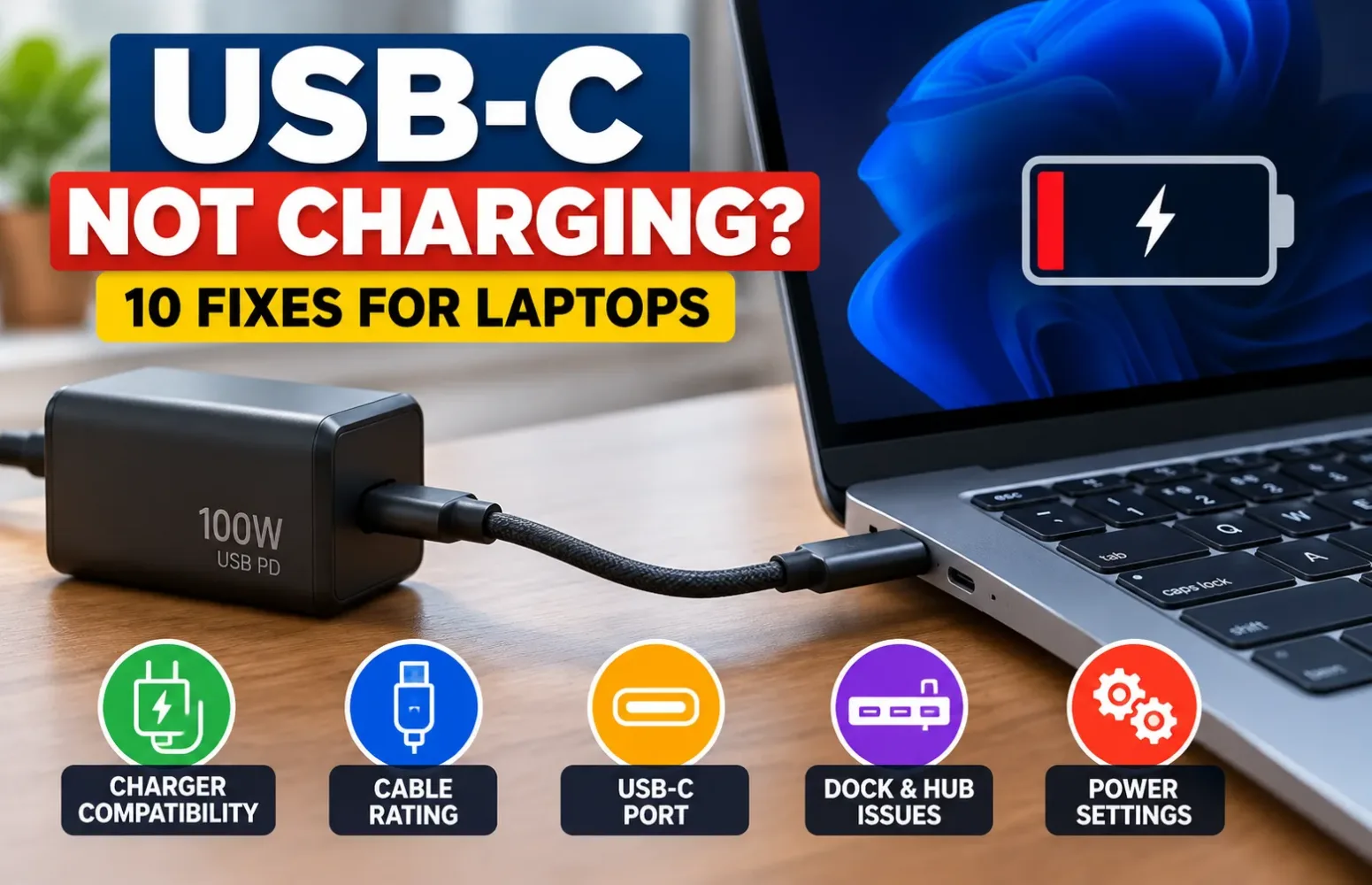
A USB-C charger can work perfectly with your phone and still fail to charge your laptop. Even more confusing, your laptop might recognize the charger, display a charging symbol, and continue losing battery power.
USB-C refers to the physical connection, but it does not determine how much power a laptop can draw for charging. The charger, cable, charging port and laptop’s power-management system all have to work together.
Before buying another adapter or assuming the battery has failed, there are several things worth checking.
Quick Answer: What to Do When USB-C Laptop Charging Stops Working
First, connect the laptop’s original charger or a manufacturer-approved USB Power Delivery adapter directly to a USB-C port that supports charging. Remove any docking station or hub, check the charging cable’s power rating, and test with the laptop switched off.
If it charges while switched off but loses battery during gaming or demanding work, insufficient charging power is one possible explanation.
If the laptop stops charging at a consistent percentage, check whether a battery protection feature is limiting the charge intentionally.
Important: Stop using the charger or laptop port if you notice burning smells, melting, unusual discoloration, battery swelling or abnormal heat.
Identify the Problem Before Trying a Fix
| What you notice | Possible explanation | What to check first |
|---|---|---|
| No charging indication | Wrong port, incompatible charger, cable or hardware fault | Original charger and correct port |
| Windows says “Slow charger” | Available charging power is insufficient | Charger output and cable rating |
| Battery drains while plugged in | Power consumption exceeds incoming power | Charger wattage and workload |
| Charging works without a dock | Dock compatibility or power-delivery limitation | Direct USB-C connection |
| Charging stops around 60–80% | Battery conservation setting | Manufacturer battery utility |
| Charging disconnects intermittently | Loose connector, contamination or damaged cable | Cable and port condition |
These are diagnostic clues, not definitive diagnoses. One symptom can have several causes.
Why a USB-C Charger Can Work but Your Laptop Refuses to Charge
USB Power Delivery, usually shortened to USB PD, allows compatible devices and power adapters to negotiate how power will be supplied.
A laptop may require a particular voltage and minimum power level. The charger must be capable of supplying a compatible power profile, while the cable must be rated to carry the required current.
Consider a laptop supplied with a 65W USB-C adapter. Replacing it with a 20W phone charger does not automatically provide adequate power simply because the connector fits.
Depending on compatibility, the laptop may charge at a reduced speed, receive power only in certain situations, or fail to recognize the adapter altogether.
USB-C offers multiple features, but it is important to understand that they do not all serve the same purpose.
- USB-C: The physical connector.
- USB Power Delivery: A system for negotiating compatible power delivery.
- USB4 and Thunderbolt: Connectivity standards whose capabilities must be checked separately from laptop charging-input support.
- DisplayPort Alt Mode: A way to transmit display signals over compatible USB-C connections.
A port can transfer files or connect to a monitor without necessarily accepting power to charge the laptop.
This is why checking the exact laptop model matters more than assuming every USB-C socket behaves identically.
How to Fix Laptop USB-C Charging Problems: 10 Steps
1. Confirm That the USB-C Port Supports Laptop Charging
Start by checking the laptop’s official technical specifications or user manual.
Look for terms such as USB-C Power Delivery input, USB-C charging, or a documented supported charging wattage.
If your laptop has multiple USB-C ports, verify which ones accept charging power.
A lightning-bolt, Thunderbolt or USB symbol can help identify a port, but it should not replace the manufacturer’s documentation.
Some laptops use USB-C exclusively for data and external displays while retaining a separate dedicated charging connector.
Others support USB-C charging only within certain power limits.
What I would check first: Whether the exact port is documented as accepting charging power, rather than merely advertising USB-C or Thunderbolt connectivity.
If the laptop does not support USB-C charging input, Windows settings cannot add that missing hardware capability.
2. Test the Original Adapter and a Different Wall Outlet
Before investigating firmware or drivers, eliminate the simplest power-supply problems.
Unplug the charger from both the laptop and the electrical outlet. Reconnect it securely, preferably directly to a known-working socket.
Check that any detachable AC lead is firmly seated.
If you normally use an extension board or power strip, temporarily test the charger directly from a wall outlet.
Next, reconnect the laptop using the power adapter supplied by its manufacturer.
If the original charger works but a replacement does not, that narrows the investigation toward adapter compatibility, power output or the charging cable.
It does not automatically mean the replacement adapter is defective.
3. Check the USB-C Charger’s Actual Power Output
A charger labelled 100W does not necessarily supply 100W from every USB-C socket or under every connection arrangement.
Multi-port adapters may distribute their available power between connected devices. Some USB-C ports also have lower individual power limits than the charger’s advertised total.
Check the output specifications printed on the adapter or published by its manufacturer.
For illustration:
| Adapter output | Electrical power |
|---|---|
| 20V × 2.25A | 45W |
| 20V × 3.25A | 65W |
| 20V × 5A | 100W |
These are examples of output combinations, not requirements for every laptop.
What matters is whether your charger provides a voltage and current profile compatible with your laptop’s documented charging input.
A higher-wattage charger simply offers more available power. The laptop draws only the amount it is designed to accept. With correctly implemented USB PD equipment, the connected devices negotiate the supported supply.
However, a high wattage label alone does not guarantee that two products will negotiate a suitable power profile.
4. Try a Different USB-C Cable That Supports the Required Power
The cable is easy to overlook because two USB-C cables can look practically identical.
A cable that reliably transfers photographs may not be suitable for delivering the charging power a laptop expects.
USB-C cable power ratings matter independently of data-transfer speeds.
Under the conventional USB PD 20V supply range, a 3A cable carries up to 60W, while delivering 100W at 20V requires a suitable 5A-rated cable.
USB-IF has also introduced certified 60W and 240W cable markings to help buyers identify power capabilities.
When replacing a cable, check:
- Its stated power rating.
- Whether it supports the current your laptop requires.
- Whether it is suitable for the charger’s USB PD specification.
- Whether its plugs or outer insulation show any damage.
Higher-current USB-C cables use electronic identification, often called an E-marker, so compatible equipment can determine the cable’s capabilities.
For laptops requiring more than 60W, I would choose a reputable cable with explicitly documented support for the required power level rather than rely on an unmarked cable.
A cable advertised as supporting 240W does not make every connected laptop charge at 240W. The charger and laptop must also support the applicable power-delivery mode.
5. Remove Your USB-C Hub, Dock or External Monitor
This is an important check for people using one USB-C cable to connect their laptop to an entire desk setup.
A USB-C docking station can provide connections for external monitors, storage devices and Ethernet while also supplying power to the laptop.
However, a dock’s advertised adapter wattage is not necessarily the same as the power it passes to the laptop.
The dock itself needs power, and the amount available to the host computer depends on its design.
To investigate:
- Disconnect the docking station or USB-C monitor.
- Connect a known-compatible charger directly to the laptop.
- Check whether charging begins.
- Reconnect the dock and compare its behavior.
If charging works directly but fails through the dock, investigate the dock’s documented host-power output and laptop compatibility.
Also check whether you are connecting the charger to the dock’s intended power input. On some docking stations, additional USB-C sockets are designed for peripherals and cannot power the dock.
Dell documents both dock compatibility requirements and cases where powered hubs may provide inadequate laptop charging power.
6. Check Whether the Laptop Charges When Switched Off
Suppose your laptop remains at 40% while you play a demanding game, but begins charging after you shut it down.
That difference is useful evidence.
The laptop’s operating power demand may be consuming much of the power available from the adapter. Some laptops can even draw additional energy from their batteries under heavy workloads.
This does not mean every instance of charging loss during gaming is normal. An adapter, connector, charging circuit or thermal issue could also be involved.
Run a simple comparison:
- Check the current battery percentage.
- Connect a compatible charger.
- Leave the laptop idle for a short period and observe the result.
- Shut it down and check whether charging behavior improves.
- Compare that with what happens during a demanding workload.
If the battery charges only during light use, confirm that the adapter meets the manufacturer’s requirements for your particular laptop.
This matters especially for gaming laptops and mobile workstations. A machine supplied with a high-wattage proprietary adapter may support lower-power USB-C charging for travel without allowing USB-C to replace the original adapter under full load.
For readers who want to understand the relationship between battery energy and charging assumptions, iTechVora’s Battery Charging Time Calculator provides an illustrative estimate.
The calculator is not a USB PD diagnostic tool and cannot measure the actual wattage negotiated by a connected laptop.
7. Inspect the USB-C Connector and Charging Port
Repeated cable insertion, travelling with a laptop and everyday dust exposure can eventually cause connection problems.
Inspect the USB-C plug and laptop port for visible damage or debris.
If the connector is loose, unusually difficult to insert, or works only when pressure is applied at a particular angle, stop using that connection until the issue is evaluated.
Turn off the laptop and disconnect all power before inspecting the port.
Avoid inserting needles, metal tools or other conductive objects. Never apply liquids directly inside the connector.
Follow the manufacturer’s cleaning guidance. If you see bent contacts, scorch marks or physical damage, arrange professional service rather than attempting to reshape the connector.
A damaged USB-C port can still transfer some data while failing to maintain a reliable charging connection.
8. Restart the Laptop and Reset Power Management Safely
Occasionally, a temporary power-management or controller issue can interrupt normal charging behavior.
Save your work, disconnect unnecessary USB devices and shut down the laptop.
Reconnect the original compatible adapter and test charging again.
If the issue remains, consult your laptop manufacturer’s instructions for a power reset or embedded-controller reset.
The exact procedure varies between brands and models. Some systems use a specified power-button sequence; others have manufacturer-specific reset functions.
I would not recommend blindly holding buttons, disconnecting internal batteries or changing undocumented firmware settings.
For MacBooks, Apple recommends straightforward checks such as restarting, checking the outlet, trying another supported cable and looking for available software updates.
9. Check Battery Charge Limits Before Assuming Failure
Not every laptop that stops charging has a hardware problem.
Modern battery-management software may intentionally stop charging below 100% to reduce the time a lithium-ion battery spends at a high charge level.
On supported Windows laptops, Smart charging can maintain the battery below full capacity. Microsoft notes that its implementation depends on the device manufacturer.
Lenovo laptops may provide Conservation Mode or configurable charging thresholds through Lenovo Vantage. Some configurations intentionally stop charging around 55–60% or at another user-selected limit.
MacBooks can also pause charging through Optimized Battery Charging or an enabled charge limit.
Before changing anything, inspect:
- Windows battery status and your manufacturer’s power utility.
- Any configured battery charging threshold.
- Available battery-health information.
- Whether the charging limit matches the percentage where charging stops.
A battery that stays at 80% because of a deliberate charge limit is a different situation from a laptop that receives no power from an adapter.
You can also use iTechVora’s Laptop Battery Runtime Calculator to explore how battery capacity, health and average power draw affect estimated unplugged use.
That calculator estimates runtime, not USB-C charging faults.
10. Check Official Firmware Updates and Run Hardware Diagnostics
If the charger, cable and port are confirmed compatible, the next step is to investigate the laptop’s own power-management system.
Check the official support page for your exact model, including available BIOS, firmware, chipset and charging-related updates.
If you use a docking station, check whether the dock manufacturer provides a relevant firmware update too.
Do not install drivers from unofficial download websites or flash firmware intended for a different model.
A BIOS update also requires care. Follow the manufacturer’s prerequisites, especially when the battery is low or the adapter is not recognized.
On certain Dell systems, the BIOS provides information about whether the AC adapter is recognized. An incorrect or unknown adapter reading can help identify a power-supply or connection problem.
Manufacturer-provided diagnostics can also help distinguish battery degradation from an external charging failure.
If a compatible known-good adapter and cable fail across supported charging ports, including when the computer is switched off, professional hardware diagnosis becomes the more sensible next step.
How Much USB-C Charging Power Does a Laptop Need?
There is no single wattage suitable for every USB-C laptop.
Lightweight laptops often operate with modest charging requirements, whereas high-performance gaming laptops and professional workstations typically demand significantly more power.
The correct figure comes from the manufacturer’s specifications for the exact model.
| Charging scenario | What matters |
|---|---|
| Laptop designed for 45W input | Confirm a compatible 45W power profile and suitable cable |
| Laptop designed for 65W input | Verify the required voltage/current combination and cable rating |
| Laptop designed for 100W input | Check for a compatible 100W USB PD output and 5A-capable cable |
| Laptop supporting higher-power USB PD | Verify the exact supported input, EPR requirements where applicable, and appropriate cable |
| Gaming laptop with proprietary charging | Check whether USB-C is supported as a secondary, lower-power option |
USB-IF’s Power Delivery specification supports up to 240W in compatible implementations. That is an upper limit of the technology, not a promise that any USB-C laptop can receive that amount.
Another detail buyers should not miss is that a laptop’s maximum USB-C input may be lower than the wattage supplied by its original dedicated charger.
If a gaming laptop uses a 240W proprietary power supply, attaching a USB-C charger labelled 240W does not automatically reproduce the same charging or performance behavior.
When USB-C Charging Problems Point to Hardware Failure
After basic troubleshooting, the pattern of failure becomes more important than trying random software fixes.
A laptop that reliably charges through one supported port but not another may need its faulty connection inspected.
A device that refuses several compatible, known-good adapters may have a charging-controller, battery or internal power-circuit issue.
If the battery is swollen, the connector is burnt, the adapter has visible electrical damage, or the charging connection becomes abnormally hot, stop using it and arrange service.
Do not repeatedly reconnect a visibly damaged cable to see whether the issue disappears.
For laptops under warranty, contact the manufacturer before opening the chassis or attempting component-level repairs.
How to Choose a Replacement USB-C Laptop Charger
The most important buying question is not which charger has the largest wattage printed on its case.
I would examine four specifications before ordering a replacement.
Laptop compatibility: Confirm that the exact laptop model accepts USB-C charging and identify its supported input requirements.
USB PD output profiles: Look beyond the adapter’s total wattage and check its available output combinations.
Cable rating: Ensure the USB-C cable supports the required power and is appropriate for the charger and device.
Single-port versus multi-port power: Check how much power the charger provides to the laptop when other devices are connected.
For a laptop used primarily at a desk, keeping its original manufacturer-approved power adapter may be the most dependable arrangement.
A compact USB-C charger can still be convenient for travel, provided it meets the laptop’s documented requirements.
Frequently Asked Questions
Why is my laptop plugged in but not charging through USB-C?
Charging failures can result from an unsupported USB-C port, incompatible Power Delivery settings, inadequate adapter wattage, an improperly rated cable, battery charging restrictions or a hardware fault. Start by testing the original compatible adapter directly.
Can I charge a 65W laptop with a 100W USB-C charger?
Generally, yes, when the laptop supports USB-C Power Delivery and the adapter provides a compatible output profile. The laptop does not automatically consume the charger’s full 100W rating.
Why does my laptop charge through USB-C only when turned off?
A low-power adapter may provide enough energy to charge the battery when the system is idle or switched off but not enough during demanding workloads. Other compatibility or hardware issues are also possible.
Does a Thunderbolt port always support laptop charging?
Do not assume charging-input support solely from a Thunderbolt label. Check the exact laptop’s documentation, because the charging arrangements and power requirements depend on its implementation.
Why does my laptop stop charging at 80%?
It may have a battery protection feature enabled. Check Smart charging, the laptop manufacturer’s battery utility or the macOS battery charging settings, depending on the device.
Can a USB-C dock cause laptop charging problems?
Yes. The dock may deliver less power to the laptop than expected, or its host charging capability may not match the laptop’s requirements. A direct charger connection is a useful way to isolate the problem.
Final Verdict: Check Compatibility Before Replacing Hardware
USB-C charging failures are frustrating because the connector makes different chargers, cables and ports look interchangeable.
In practice, their power capabilities can be very different.
My recommendation is to work through the charging chain in a controlled order: verify the port, test the original power adapter, confirm the cable rating and eliminate docks before investigating firmware or internal hardware.
If those checks fail, use official model-specific diagnostics or professional service rather than experimenting with questionable replacement chargers.
The real advantage of USB-C charging is convenience. To make USB-C charging work consistently, the charger, cable and connection must meet the laptop’s specific power and compatibility requirements.
Trusted Sources Used
- USB Implementers Forum — USB Charger (USB Power Delivery)
https://www.usb.org/usb-charger-pd
- USB Implementers Forum — Cables and Connectors
https://www.usb.org/cable_connector
- Microsoft Support — Fix USB-C Problems in Windows
https://support.microsoft.com/en-us/windows/hardware/usb/fix-usb-c-problems-in-windows
- Microsoft Support — PC Is Charging Slowly or Discharging While Plugged In
https://support.microsoft.com/en-US/Windows/Experience/Power-Battery/pc-is-charging-slowly-or-discharging-while-it-s-plugged-in
- Microsoft Support — Use Smart Charging in Windows
https://support.microsoft.com/en-us/windows/experience/power-battery/use-smart-charging-in-windows
- Dell — How to Connect and Set Up a Docking Station With a Dell Laptop
https://www.dell.com/support/kbdoc/en-in/000126484/how-to-connect-and-set-up-a-docking-station-with-a-dell-laptop
- Dell — How to Troubleshoot Dell Laptop Battery Issues
https://www.dell.com/support/kbdoc/en-us/000123069/how-to-troubleshoot-dell-laptop-battery-issues
- Lenovo Support — Battery Stops Charging at 95%
https://support.lenovo.com/gr/en/solutions/ht514263
- Apple Support — If Your USB-C Power Adapter Isn’t Charging Your Mac Laptop
https://support.apple.com/en-gb/102464
- Apple Support — Charge Your Mac Laptop Computer
https://support.apple.com/en-in/102397
Report an issue with this article
Spotted outdated information or a broken link? The article URL is included automatically. Reports are private. Please do not include sensitive personal information.
Contact us at itechvora@gmail.com with the article link.