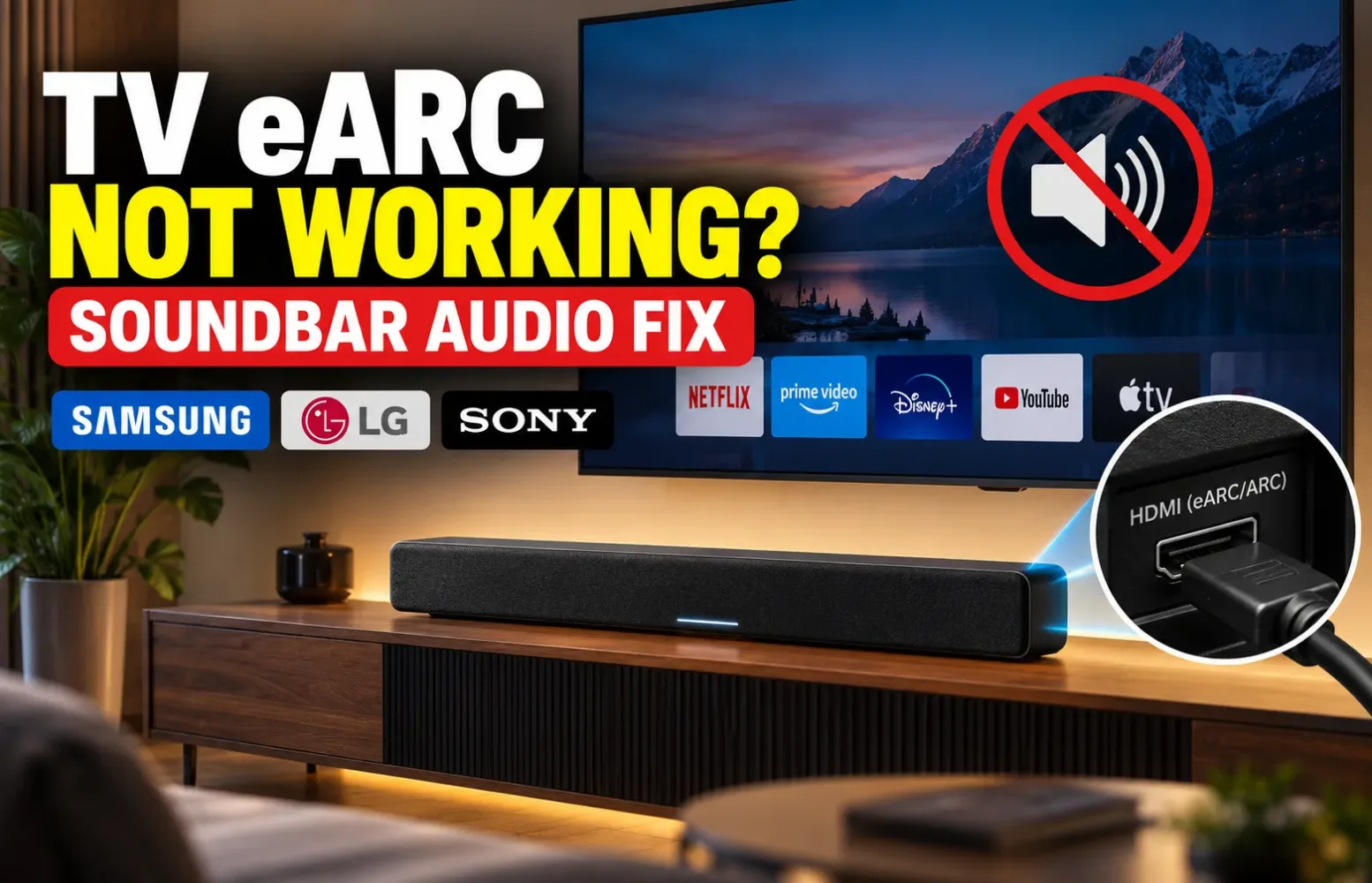
You switch on your television, open Netflix or YouTube, and realise your soundbar has stopped playing audio. The picture looks fine, the HDMI cable is connected, and the soundbar powers on normally. Yet the television either remains silent or starts using its built-in speakers.
It is tempting to blame the soundbar immediately. However, an HDMI eARC connection depends on several things working together: the correct HDMI ports, compatible audio settings, device communication and a reliable cable.
A TV software update, an incorrect sound-output selection or an HDMI device interfering with the connection can be enough to interrupt the audio.
The good news is that many eARC problems can be investigated without replacing anything. Whether you own a Samsung, LG or Sony television, the most useful approach is to check the connection first and then work through the settings.
Quick Fix: What to Check When TV eARC Stops Working
Before exploring advanced audio options, check these five things:
- HDMI ports: Connect the television’s HDMI ARC/eARC port to the soundbar’s HDMI OUT (TV ARC/eARC) port.
- Sound output: Select your connected soundbar or external audio system rather than the TV speakers.
- HDMI-CEC: Enable Anynet+ on Samsung, SIMPLINK on LG or BRAVIA Sync on supported Sony TVs.
- eARC setting: Set HDMI eARC to Auto or enable eARC Support if both devices support the feature.
- Restart: Power off both devices, disconnect their power and HDMI cable, then reconnect them.
Try playing something from a built-in TV application after making these changes. If audio returns, test your other sources individually.
Important: The exact menu names depend on your television’s model, software version and region. Some older TVs support ARC without supporting eARC.
Why Does TV eARC Stop Working?
HDMI eARC stands for Enhanced Audio Return Channel. It allows audio from your television to travel to a compatible soundbar or AV receiver through an HDMI connection.
The technology is particularly useful when you have several devices connected to the TV. Audio from streaming applications, a gaming console or another HDMI source can reach your sound system without requiring a separate optical audio connection.
The complication is that an HDMI cable alone does not guarantee that the devices will exchange audio correctly.
For example, your television might recognise the soundbar but continue sending sound to its internal speakers. Alternatively, the soundbar could receive a signal but fail to play a particular audio format.
HDMI-CEC communication can also cause problems. It helps connected equipment coordinate functions such as power, input selection and volume control. Samsung, LG and Sony use their own names and menu layouts for this functionality.
This is why I would not recommend changing every audio option immediately. First establish whether the problem involves the physical connection, device detection or the audio format itself.
1. Make Sure Both Devices Use the Correct HDMI Ports
This is the first check I would make, even if the setup previously worked.
Most televisions have several HDMI inputs, but only specific ports support ARC or eARC.
Look for a label such as:
- HDMI (ARC)
- HDMI (eARC)
- HDMI (eARC/ARC)
The supported HDMI input number varies between televisions. It is not necessarily HDMI 2 or HDMI 3.
On the soundbar, connect the other end of the cable to the HDMI output marked TV ARC or TV eARC/ARC.
Do not confuse this with a regular HDMI input used for connecting a Blu-ray player or gaming console.
Once connected, switch the soundbar to its TV, ARC or corresponding HDMI audio mode, depending on the manufacturer.
If your soundbar has both HDMI IN and HDMI OUT connections, selecting the wrong input can leave you with no audio even when the wiring looks correct.
2. Restart the TV and Soundbar to Re-establish the HDMI Connection
Sometimes both devices retain an incorrect connection state after waking from standby, switching inputs or restarting following an update.
A complete power restart is worth trying before changing advanced settings.
- Switch off the television and soundbar.
- Unplug both devices from their power outlets.
- Disconnect the HDMI cable between them.
- Leave everything disconnected for around two minutes.
- Reconnect the HDMI cable to the appropriate ARC/eARC ports.
- Restore power and switch on the television, followed by the soundbar.
Now open a built-in TV application and check whether the soundbar plays audio.
If the problem disappears, the devices may have needed to re-establish their HDMI connection.
If it returns frequently, however, the restart has only addressed the immediate symptom. Continue checking device communication, cables and software.
3. Fix Samsung TV eARC Not Working
Samsung televisions use a feature called Anynet+ for HDMI-CEC communication.
On supported Samsung models, enabling this function is an important part of getting ARC/eARC audio working reliably.
Enable Anynet+ (HDMI-CEC)
On many recent Samsung televisions:
Settings → All Settings → Connection/Connections → External Device Manager → Anynet+ (HDMI-CEC) → On
Older Samsung models may place External Device Manager under General.
Select the Soundbar as the Audio Output
Go to:
Settings → All Settings → Sound → Sound Output
Choose the connected soundbar or Receiver (HDMI), depending on the available options.
Enable HDMI eARC Mode
On compatible models, open:
Settings → All Settings → Sound → Expert Settings → HDMI eARC Mode → Auto
If both your TV and soundbar support eARC, Auto is generally the appropriate starting point.
You can also review Digital Output Audio Format under Expert Settings.
Start with Auto. Pass-Through may be useful when you want compatible encoded audio sent to your sound system without unnecessary processing, although availability depends on the connected source and television.
If a Samsung soundbar has a source selection button, make sure it is using the appropriate digital-input or TV ARC mode. Some models identify the connection automatically after selecting D.IN.
What if Samsung eARC still has no sound?
Disconnect other HDMI equipment temporarily. A set-top box, streaming device or console can sometimes interfere with HDMI device communication.
Test the television with only the soundbar attached. If that works, reconnect the other devices one at a time.
4. Fix LG TV eARC Not Working
LG televisions use SIMPLINK for HDMI-CEC.
When an LG TV does not recognise a connected soundbar, I would check both SIMPLINK and Sound Out before experimenting with audio formats.
Select the HDMI Sound Output
On many LG webOS televisions:
Settings → All Settings → Sound → Sound Out → Use Wired Speaker → HDMI (ARC) Device
On other models, the output may simply appear as HDMI ARC or HDMI (eARC/ARC).
Select the option matching your connected sound system.
Enable SIMPLINK
A commonly used path is:
Settings → General → External Devices → HDMI Settings → SIMPLINK (HDMI-CEC) → On
Some webOS versions place these controls under System or Devices.
Turn On eARC Support
On compatible LG televisions, find the eARC Support option in the television’s advanced sound settings.
A commonly used location is:
Settings → All Settings → Sound → Advanced Settings → eARC Support
Enable it when the connected audio system supports eARC.
Next, review Digital Sound Output. Auto is a sensible starting point, while Pass Through may be preferable for supported multichannel formats.
If your LG soundbar has a Function button, select the appropriate HDMI ARC function. Some models display ARC or E-ARC after establishing a connection.
One thing worth checking: If the soundbar works through Bluetooth but remains silent through HDMI, do not assume that its speakers are defective. Test the HDMI connection separately, including its ports, input mode and SIMPLINK settings.
5. Fix Sony BRAVIA eARC Not Working
Sony BRAVIA televisions can use different audio menus depending on whether the model runs Google TV, Android TV or an older interface.
Start by confirming that the television is sending sound to the external audio system.
Change the Speaker Output
A common menu path is:
Settings → Display & Sound → Audio output → Speakers → Audio system
On other models, the Speakers setting appears directly under Sound.
Enable eARC
Look for:
Settings → Display & Sound → Audio output → eARC mode → Auto
On some newer interfaces, Sony places the option under Audio system settings and calls it eARC setting.
Check BRAVIA Sync
On supported models, enable BRAVIA Sync or Control for HDMI.
One documented Sony menu path is:
Go to Settings, select Watching TV, open External Inputs, and then choose BRAVIA Sync Settings.
Check whether the connected audio system appears in the BRAVIA Sync device list.
If the soundbar is not recognised, verify its HDMI cable and ARC/eARC connection before attempting further configuration.
The soundbar itself may also need Control for HDMI enabled, with its TV audio input selected.
When Sony Has Sound but Audio Is Delayed
If dialogue arrives after the corresponding picture, investigate the television’s A/V sync and digital audio output settings.
Sony also documents disabling eARC as a possible compatibility test for some audio timing problems. That can restore more reliable operation in certain configurations, but it may change which audio formats are available.
I would treat that as a troubleshooting measure rather than automatically leaving eARC disabled.
6. Try PCM When the Soundbar Has No Audio
Audio-format compatibility is an easily overlooked part of troubleshooting.
A television can recognise an external audio system and still have difficulty delivering the format selected by a particular application or HDMI device.
For diagnosis, find the TV’s Digital Audio Output setting and temporarily select PCM.
Then play a normal television programme or streaming video.
If sound returns, it suggests that the connection can carry audio and that the previous digital-audio format or its handling may be involved.
However, PCM is not automatically the best permanent setting.
On many televisions, selecting PCM in the digital output menu results in stereo output rather than the original encoded surround-sound format. Some eARC implementations can also handle multichannel PCM differently.
If you have a Dolby Atmos-capable soundbar or multichannel receiver, restore Auto or the appropriate Pass-Through setting after identifying the compatibility issue.
On certain Sony televisions, eARC pass-through can also behave independently of the selected PCM setting, so refer to the model’s instructions if the output format does not change as expected.
7. eARC Works, but Dolby Atmos Is Missing
Getting ordinary TV sound to play is one problem. Getting Dolby Atmos to work is another.
A soundbar displaying ARC does not necessarily mean it is receiving the audio format you expected.
First, confirm that the content actually has a Dolby Atmos soundtrack. The streaming application, subscription plan and playback device must also support the relevant format.
Next, check that the television and soundbar support the required audio path and codec.
This distinction matters because Dolby Atmos can be delivered in different ways.
Some streaming services use Dolby Atmos carried through Dolby Digital Plus, which can work over compatible ARC connections.
Higher-bitrate formats, including Dolby TrueHD-based Atmos from compatible disc players, generally require an appropriate eARC connection when audio is routed through the TV.
Even then, the TV must support passing through the selected format. A device having an eARC port does not guarantee every codec will work.
If Atmos disappears after switching from ARC to eARC, examine the audio output settings on the television and source device.
Also check whether your soundbar reports the incoming format. The information display can help establish whether the issue involves the soundtrack, the television’s output or the soundbar itself.
8. Check the HDMI Cable Before Replacing the Soundbar
HDMI cables are another source of avoidable problems.
A cable can appear physically intact while causing intermittent communication or audio failures.
Before purchasing a replacement, remove any HDMI coupler, extension lead or adapter and connect the TV directly to the soundbar.
Make sure the plugs fit securely.
If the problem continues, test with a short, known-working cable suitable for eARC.
A certified Ultra High Speed HDMI cable is a straightforward choice for a new eARC connection. Older suitable HDMI cables with Ethernet may also work, but not all cable types are certified for eARC operation.
Avoid assuming that a cable marketed only with a large numerical HDMI version is automatically reliable. Look for its actual certification and supported features.
9. Soundbar Audio Cuts Out or Stops After Switching Inputs
Intermittent audio can be more frustrating than complete silence because the connection sometimes appears to work normally.
The problem might occur after:
- Switching between the TV’s streaming applications and HDMI sources.
- Turning on a gaming console or set-top box.
- Waking the television from standby.
- Changing between stereo and surround-sound content.
- Switching the soundbar to another input.
Start by testing the soundbar with a built-in television application and no other HDMI devices connected.
If it remains stable, reconnect the devices individually.
This is particularly useful for setups involving a PS5, Xbox, streaming stick and soundbar, where several devices may exchange HDMI-CEC commands.
For gaming setups, also check whether the eARC connection occupies one of the television’s high-bandwidth HDMI ports.
Our 60Hz vs 120Hz TV for PS5 guide explains why the number of compatible HDMI gaming inputs matters when connecting multiple devices.
If the audio problem happens only with a console, check the console’s selected HDMI audio format and compare it with what the soundbar and television can handle.
10. Update the TV and Soundbar Firmware
Firmware updates can change how televisions detect HDMI equipment, manage audio outputs or communicate with connected devices.
Check the television’s Software Update section and install an official update if one is available for your exact model.
Do the same for the soundbar through its manufacturer’s supported app, update utility or documented USB procedure.
Avoid downloading firmware from unofficial websites or installing packages intended for another regional model.
After updating, restart both devices and verify the sound-output and eARC settings again.
An update does not guarantee that an eARC issue will disappear, but checking official software is worthwhile when the hardware and settings appear correct.
11. When Should You Use ARC or Optical Audio Instead?
Not every soundbar needs eARC.
If you mainly watch ordinary television broadcasts and streaming content, a working ARC connection may already support the audio formats you use.
If your soundbar does not support eARC, enabling eARC-related options on the television cannot add that capability to the soundbar.
Some TV and soundbar combinations can fall back to ARC, but compatibility should be checked rather than assumed.
An optical audio connection is another practical alternative when HDMI ARC communication refuses to work.
Optical can carry stereo PCM and certain compressed surround-sound formats, subject to device support. However, it does not offer eARC’s higher-bandwidth audio capabilities, and HDMI-CEC features such as coordinated power and volume control will not work through the optical cable itself.
I would consider optical a useful fallback, not an equivalent replacement for every eARC home-theatre setup.
How to Identify the Actual eARC Problem
| What happens | Most useful next check |
|---|---|
| No sound at all | HDMI ARC/eARC ports, sound output and soundbar input |
| Sound plays through TV speakers | External speaker selection and HDMI-CEC |
| Soundbar is not detected | HDMI cable, CEC and power restart |
| Stereo works, surround does not | Digital audio format and codec support |
| Dolby Atmos is missing | Source format, pass-through and device compatibility |
| Audio cuts out after switching inputs | Other HDMI devices, CEC interaction and firmware |
| Dialogue is out of sync | A/V sync and digital audio settings |
These symptoms are diagnostic clues rather than definitive proof of a particular fault.
If nothing works, test the soundbar with another supported connection or compatible television where possible. Likewise, test the TV’s ARC/eARC port with another compatible audio device.
That helps narrow down whether the fault follows the cable, the television or the audio system.
Final Thoughts: Fix the Connection Before Changing Your Hardware
A silent soundbar does not necessarily mean you need a replacement.
Most importantly, confirm that both devices support the intended audio connection and are connected through the correct HDMI ports. Then check the TV’s audio destination, HDMI-CEC controls and eARC setting.
If ordinary audio works but surround sound fails, focus on format compatibility rather than repeatedly resetting the equipment.
The distinction between ARC and eARC also matters. eARC is valuable for supported high-bandwidth audio formats, but it cannot overcome missing codec support in the television or soundbar.
For Samsung, LG and Sony owners, a methodical check of these settings is a better starting point than randomly changing advanced audio options.
If the connection remains unreliable after testing a known-working cable, updating both devices and isolating other HDMI equipment, consult the manufacturers’ model-specific support guidance. A hardware fault or firmware compatibility problem may require service.
Frequently Asked Questions
Why is my TV eARC connected but there is no sound?
The television may be using its internal speakers, the soundbar may be on the wrong input, or HDMI-CEC communication may not be working. Check both ARC/eARC ports, select the external audio system and restart the devices.
Should HDMI eARC be set to Auto or Off?
For a compatible eARC television and soundbar, Auto or Enabled is usually the appropriate choice. Turning eARC off may help diagnose compatibility problems or allow supported ARC operation, but can limit available audio formats.
Does eARC require a special HDMI cable?
A certified Ultra High Speed HDMI cable is a reliable choice. Some older HDMI cables with Ethernet may work, although not all are certified for eARC. Check the cable’s actual specifications rather than relying on marketing labels.
Can HDMI ARC play Dolby Atmos?
Yes, some compatible ARC setups can carry Dolby Atmos through Dolby Digital Plus. For higher-bandwidth Dolby TrueHD-based Atmos routed through a TV, an appropriate eARC connection is generally needed.
Why does my LG TV have no sound through HDMI ARC?
Check whether Sound Out is set to the HDMI ARC device, SIMPLINK is enabled and the soundbar has selected its HDMI ARC input. Also verify that the cable is connected to the correct TV and soundbar ports.
Why does my Sony BRAVIA lose sound from the soundbar?
Possible causes include HDMI device communication, incorrect speaker selection, an unsupported audio format or a connection problem. Check BRAVIA Sync, Audio system output, eARC mode and the soundbar’s TV input.
Trusted Sources
- Samsung India — How to Use HDMI ARC/eARC on Samsung Smart TV
https://www.samsung.com/in/support/tv-audio-video/how-to-use-hdmi-arc-on-samsung-smart-tv/ - Samsung India — Tips to Resolve No Sound Output From Samsung Soundbar
https://www.samsung.com/in/support/tv-audio-video/tips-to-resolve-no-sound-output-from-samsung-soundbar/ - LG India — How to Connect HDMI ARC From LG TV to Soundbar
https://www.lg.com/in/support/product-support/troubleshoot/help-library/cs-CT20150005-20152213761684/ - LG — How to Connect an LG TV to a Soundbar Using HDMI
https://www.lg.com/uk/support/product-support/troubleshoot/help-library/cs-CT00008333-20155143380656/ - Sony — No Sound When Using a TV or Audio System With ARC/eARC
https://www.sony.com/electronics/support/audio-video/articles/00020051 - Sony — There Is No Sound From the Audio System When Connected With eARC
https://www.sony.com/electronics/support/audio-components-receivers-amplifiers/str-db830/articles/00206008 - Sony — Audio and Video Are Out of Sync
https://www.sony.com/electronics/support/televisions-projectors-monitors/articles/00026069 - HDMI Licensing Administrator — Enhanced Audio Return Channel
https://www.hdmi.org/spec2sub/enhancedaudioreturnchannel
Report an issue with this article
Spotted outdated information or a broken link? The article URL is included automatically. Reports are private. Please do not include sensitive personal information.
Contact us at itechvora@gmail.com with the article link.