Your Samsung or LG TV might support 4K gaming, a 120Hz refresh rate and HDMI 2.1, yet your PS5 still refuses to enable Variable Refresh Rate (VRR).
Sometimes the console reports that the connected TV doesn’t support VRR. In other cases, the option is available, but the television’s gaming dashboard shows VRR as inactive.
These problems don’t necessarily mean something is wrong with your console or television. The cause could be the HDMI port, the TV’s gaming settings, an incompatible connection or a feature that your specific model doesn’t support.
What I would avoid is changing every picture setting immediately. First, check what the PS5 actually detects. That gives you a much better idea of whether you’re dealing with a configuration problem or a genuine compatibility limitation.
Here’s how to investigate VRR problems on Samsung and LG TVs without making unnecessary changes.
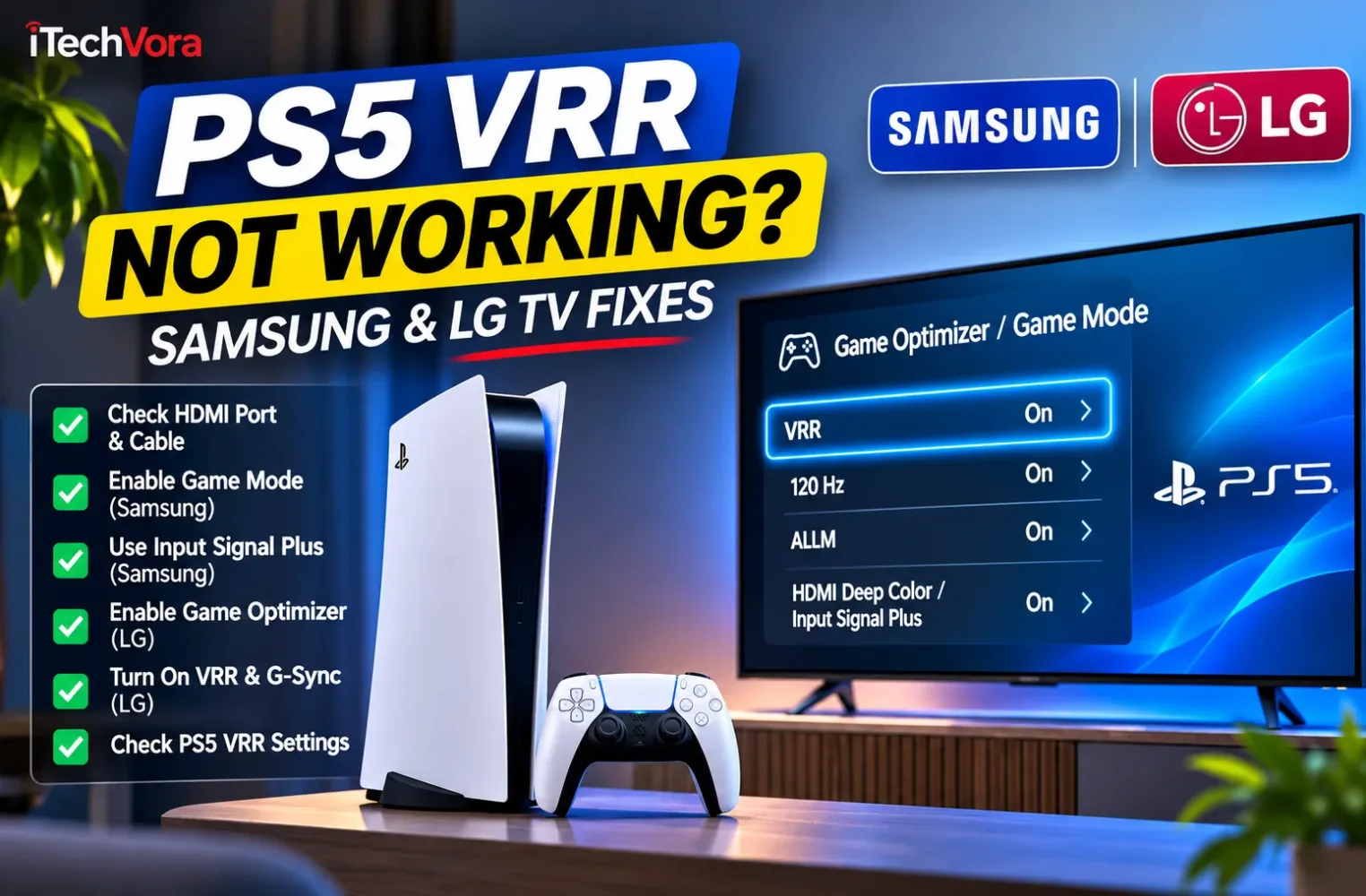
Quick Fix: Get PS5 VRR Working on Your TV
Start with these checks:
- Check compatibility: Confirm that your exact TV model and screen size support HDMI VRR for PS5.
- Check the HDMI connection: Use a VRR-compatible HDMI input and connect the PS5 directly to the TV.
- Check the cable: Use the HDMI cable supplied with the PS5 or a certified Ultra High Speed HDMI cable.
- Enable PS5 VRR: Open Settings → Screen and Video → Video Output → VRR → Automatic.
- Enable the TV’s gaming features: On Samsung, check Game Mode and Input Signal Plus. On LG, check Game Optimizer, VRR & G-Sync and HDMI Deep Color where available.
After making changes, restart the console if necessary and launch a compatible PS5 game.
If VRR remains unavailable, continue through the checks below. The next step depends on whether you have a Samsung or LG television.
Why PS5 VRR Sometimes Doesn’t Work
Variable Refresh Rate allows a compatible display to adjust its refresh timing to match changes in the console’s frame output.
Without VRR, differences between the game’s frame delivery and the TV’s refresh cycle can contribute to visible tearing or uneven motion.
VRR helps reduce these problems, particularly when a game’s frame rate varies during demanding scenes.
However, three features are often confused:
| Feature | What it actually does |
|---|---|
| VRR | Adjusts display refresh timing to follow changing frame output |
| 120Hz | Allows the television to refresh its image up to 120 times per second |
| ALLM | Automatically selects a low-latency display mode on compatible equipment |
A 120Hz display does not automatically guarantee VRR support. Likewise, ALLM can activate Game Mode without establishing a VRR connection.
This distinction matters because a television might correctly display a PS5 game at 4K 120Hz while still reporting that VRR is unsupported.
Sony’s implementation is designed for compatible HDMI VRR displays. A TV or monitor advertising AMD FreeSync or NVIDIA G-SYNC compatibility alone does not establish that it supports the VRR connection required by PS5.
The HDMI port’s actual capabilities matter more than whether the TV carries a gaming label.
1. Check VRR Settings on Your PS5 First
Before adjusting the television, find out what the console recognises.
Open:
Settings → Screen and Video → Video Output
Then review these options.
Set VRR to Automatic
Locate VRR and select Automatic, provided the option is available.
This allows the PS5 to use VRR with compatible displays and games.
You may also see Apply to Unsupported Games.
I would leave this additional option disabled while troubleshooting. It extends VRR behaviour to games without native support, but Sony warns that it can produce unexpected visual effects in some circumstances.
Once the normal VRR connection works, you can experiment with it separately.
Check 120Hz Output
On the same screen, find 120 Hz Output.
Select Automatic if your television supports compatible 120Hz input.
Remember that 120Hz and VRR are separate settings. Enabling 120Hz is useful for compatible high-frame-rate games, but it does not create VRR support on an incompatible display.
For a closer explanation, read our 60Hz vs 120Hz TV for PS5 guide.
Check Information for the Connected HDMI Device
This is one of the most useful diagnostic screens.
Under Video Output, open Information for the Connected HDMI Device.
The PS5 reports capabilities it detects through the current connection, including resolution, HDR and VRR information.
If VRR is reported as unsupported, the problem may involve the TV’s capabilities, the active HDMI input, a setting or something interrupting the connection.
If the console recognises VRR but you don’t see it active in your TV’s game information panel, test it with compatible gameplay before assuming the connection has failed.
2. Check the HDMI Port and Cable
Not every HDMI input on a television necessarily supports the same features.
A model might provide several HDMI ports but reserve higher-bandwidth gaming capabilities for selected inputs.
This is why I would check the exact TV model and its port labels instead of relying on a general statement such as “HDMI 2.1 supported.”
Connect the PS5 Directly to the TV
For troubleshooting, use this arrangement:
Connection: Connect your PS5 to a compatible HDMI input on your TV using an HDMI cable.
Temporarily remove any AV receiver, HDMI switch, splitter, capture device or soundbar positioned between the console and the television.
An intermediary device may not pass through every gaming feature supported by the TV.
If VRR starts working through a direct connection, investigate the intermediary equipment and its supported video pass-through formats.
If you normally use an HDMI eARC soundbar, you can also consult our Samsung, LG and Sony TV eARC troubleshooting guide.
Use a Suitable HDMI Cable
Sony recommends using the cable supplied with the PS5 for its advanced video features.
A certified Ultra High Speed HDMI cable is another suitable option.
Avoid assuming that every cable advertised as 4K-compatible can reliably handle the higher-bandwidth video modes used by current consoles.
If you suspect a connection problem, test another suitable cable before replacing hardware.
3. Fix PS5 VRR Not Working on Samsung TV
Samsung’s gaming menus provide several useful controls, but the arrangement changes across model years and software versions.
Two settings deserve particular attention: Game Mode and Input Signal Plus.
Enable Samsung Game Mode
On supported Samsung televisions, Game Mode can activate automatically when the TV recognises a gaming console.
If it hasn’t activated, open your television’s settings and locate Game Mode.
On models where the option is available, set it to On or Auto.
Depending on your model, you may find it in the general gaming settings or under External Device Manager.
Game Mode helps the TV operate with lower input latency and enables relevant gaming controls.
However, it cannot add HDMI VRR support to hardware that lacks it.
Enable Input Signal Plus
Samsung uses Input Signal Plus to enable enhanced HDMI input capabilities on supported televisions.
One manufacturer-documented menu path is:
Settings → General → External Device Manager → Input Signal Plus
On newer menu layouts, External Device Manager may appear under Connection rather than General.
Choose the HDMI input connected to your PS5 and enable the option.
Samsung notes that Input Signal Plus may activate automatically when a recognised console enters Game Mode. Nevertheless, checking the selected input is worthwhile if your console reports limited capabilities.
The key is to enable the feature for the correct HDMI port, not simply for an unrelated input.
Check Samsung Game Bar
On compatible Samsung TVs, Game Bar can display the current gaming signal information, including refresh rate and VRR status.
With Game Mode enabled, press and hold the Play/Pause button on the Samsung Smart Remote to open Game Bar on supported models.
Look at the displayed gaming information while a compatible game is running.
Samsung’s 2026 Game Bar documentation also describes supported displays showing live VRR and frame-rate information. Availability varies by model.
If the TV reports VRR as active, that provides useful confirmation beyond the PS5 setting simply being switched on.
Check Game Motion Plus
There’s another Samsung setting worth understanding.
Samsung documents that Game Motion Plus and VRR cannot operate simultaneously in supported implementations.
When VRR is active, Game Motion Plus is disabled.
If you’re troubleshooting conflicting motion settings, avoid trying to force both features on at the same time.
My preference would be to establish a stable VRR connection first. Motion interpolation is a separate feature and should not be confused with synchronising the display to the console’s frame output.
4. Fix PS5 VRR Not Working on LG TV
LG OLED and other compatible LG gaming televisions provide controls through Game Optimizer.
However, the presence of Game Optimizer alone does not guarantee HDMI VRR compatibility.
Start by checking the exact TV’s specifications, then move to the settings.
Enable Game Optimizer
On supported 2021 and 2022-era LG webOS televisions, LG documents this menu:
Settings → All Settings → General → Game Optimizer
Turn Game Optimizer on.
You may also need to select Game Optimizer as the active picture mode.
LG explains that certain gaming options become accessible only when the television is using the appropriate gaming mode.
If some settings are unavailable, check the picture mode before assuming the TV is malfunctioning.
Turn On VRR & G-Sync
On LG models offering this option, the manufacturer documents the following path:
Settings → All Settings → General → Game Optimizer → Game → VRR & G-Sync → On
LG specifically notes that the option requires an HDMI connection and the appropriate Game Optimizer screen mode.
Don’t interpret the setting’s name as meaning the PS5 uses NVIDIA G-SYNC. The relevant requirement remains compatible HDMI VRR support.
Also remember that not every LG TV displays this control. Menu availability depends on the model and its supported gaming features.
Check HDMI Deep Color
This is another important LG setting when troubleshooting enhanced HDMI video modes.
The menu location depends on the television’s generation.
| LG TV generation | Manufacturer-documented path |
|---|---|
| 2026 and newer webOS 26 models | All Settings → System → External Devices → HDMI Settings → HDMI Deep Color |
| 2021–2025 webOS models | All Settings → General → External Devices → HDMI Settings → HDMI Deep Color |
| 2020 and earlier | All Settings → Picture → Additional Settings → HDMI Ultra HD Deep Color |
On a compatible PS5 input, ensure the appropriate enhanced HDMI signal mode is enabled.
LG also warns that enabling HDMI Deep Color with an incompatible source can cause display problems. If your screen becomes unstable, check the exact model’s recommended HDMI settings instead of repeatedly changing unrelated options.
The terminology and available signal modes can differ between LG television generations.
What About Older LG TVs?
Some older LG televisions use Instant Game Response rather than the newer Game Optimizer interface.
For example, LG documents this 2020-era menu:
Settings → All Settings → Picture → Additional Settings → Instant Game Response
This feature helps supported televisions respond appropriately to gaming signals.
But Instant Game Response should not be mistaken for confirmation of VRR support.
If an older LG model lacks the HDMI VRR functionality required by PS5, enabling a gaming picture mode won’t overcome that limitation.
5. PS5 Still Says Your TV Doesn’t Support VRR?
If you’ve checked the manufacturer settings and the console still reports VRR as unsupported, I would narrow the investigation rather than continue changing random picture controls.
| What you’re seeing | What to investigate next |
|---|---|
| PS5 reports VRR unsupported | Exact TV compatibility, HDMI port and direct connection |
| 4K 120Hz works but VRR doesn’t | Whether the model supports PS5-compatible HDMI VRR independently |
| VRR option appears unavailable | Console-detected HDMI capabilities and TV gaming settings |
| Samsung Game Bar shows no active VRR | Test compatible gameplay and inspect the input configuration |
| LG VRR option is unavailable | Game Optimizer picture mode and model-specific feature support |
| Screen flickers or briefly loses signal | HDMI cable, input configuration, firmware and output settings |
| VRR worked before an update | Firmware changes, connection state and restored input settings |
Update the PS5 and TV Firmware
Check for available system software updates on both devices.
On PS5, use:
Settings → System → System Software → System Software Update and Settings
For Samsung or LG, use the TV’s software-update controls or the official support page for your exact model.
Firmware can affect HDMI compatibility and device communication, so keeping both devices updated is a sensible troubleshooting measure.
However, a software update should not be assumed to add a hardware capability that the manufacturer has never supported.
Restart the HDMI Connection
If the settings appear correct:
- Turn off the PS5 and TV.
- Disconnect the HDMI cable.
- Check that it is connected to the intended ports.
- Reconnect it securely.
- Turn on the television and console.
- Recheck the PS5’s detected video capabilities.
If the problem persists, try another compatible HDMI input and suitable cable.
Sony also recommends bypassing intermediate devices when diagnosing PS5 picture and sound problems.
Test with Compatible Gameplay
Don’t rely entirely on how the home screen looks.
Launch a PS5 game known to support VRR and check its available graphics modes.
Then look at the console’s video output information and, where available, the TV’s gaming dashboard.
A TV’s information panel may report the current signal differently depending on whether the console is showing a menu or running a game.
The relevant question is whether the display and console establish a compatible variable-refresh connection during gameplay.
6. VRR Works, but the Screen Flickers or Goes Black
A working VRR connection is not necessarily the end of troubleshooting.
Some users may encounter intermittent flickering, brief blank screens or unusual image behaviour while switching gaming modes.
Sony provides a Video Transfer Rate control under the PS5’s Video Output settings.
Its support documentation recommends trying -1 or -2 when investigating certain 4K video signal issues.
However, these settings can limit available video output formats.
I would treat them as compatibility tests rather than automatic recommendations for every gaming setup.
Also try disabling Apply to Unsupported Games if you enabled it earlier.
If the problem disappears with that option turned off, leave it disabled and use normal VRR support with compatible titles.
For persistent problems, check the TV’s firmware, cable, input configuration and manufacturer-specific guidance.
7. What If Your Samsung or LG TV Doesn’t Support PS5 VRR?
Not every television can be made VRR-compatible through its settings.
A model might advertise Game Mode, ALLM, 4K resolution or even 120Hz input without providing the HDMI VRR capabilities needed by PS5.
Similarly, support for FreeSync or G-SYNC in a specification sheet does not by itself confirm PS5 compatibility.
If the TV genuinely lacks suitable VRR support, there is no universal software setting that will add it.
That doesn’t mean the television is unsuitable for gaming.
You can still use the supported resolution, refresh rate, HDR capabilities and low-latency gaming mode.
The limitation is that the display cannot use PS5 VRR to adjust its refresh timing dynamically.
When considering a future TV purchase, I would pay particular attention to the exact HDMI VRR compatibility and supported input ports rather than relying only on a general HDMI 2.1 claim.
Frequently Asked Questions
Why does my PS5 say my Samsung TV doesn’t support VRR?
Possible causes include an incompatible HDMI input, disabled enhanced input settings, a connection problem or a Samsung TV model that does not support the necessary HDMI VRR functionality. Check Game Mode, Input Signal Plus and the exact model’s specifications.
Why is VRR unavailable on my LG OLED TV?
Check whether Game Optimizer is enabled, whether the relevant VRR & G-Sync control is available and whether the PS5 is connected through a compatible HDMI input. Also verify the correct HDMI Deep Color configuration. Menu availability varies by model and software version.
Can PS5 VRR work without 120Hz?
VRR and 120Hz are different features. A 120Hz-capable TV is not automatically VRR-compatible, and the usable VRR operating modes depend on the exact display and supported HDMI connection. Check the manufacturer’s specifications rather than assuming a particular refresh-rate label guarantees support.
Does PS5 require HDMI 2.1 for VRR?
Sony specifies compatibility with HDMI 2.1 VRR televisions and monitors. What matters is whether the connected display and selected port support the appropriate VRR functionality, not merely whether a product lists HDMI 2.1.
Does enabling VRR improve every PS5 game?
No. Results depend on the game, its frame-rate behaviour, its graphics mode and the display. VRR is most useful when it can reduce visible problems caused by variations in frame delivery. It does not automatically raise a game’s frame rate.
Should I enable Apply to Unsupported Games?
You can try it after confirming that ordinary VRR works correctly. Sony warns that the feature can cause unexpected visual behaviour in some games, so disable it if problems appear.
Final Verdict: Check Compatibility Before Changing Everything
If PS5 VRR isn’t working on your Samsung or LG TV, I would begin with the console’s Information for the Connected HDMI Device screen.
That tells you more than repeatedly switching VRR on and off.
Next, verify the HDMI port and cable. On Samsung, review Game Mode and Input Signal Plus. On LG, check Game Optimizer, VRR & G-Sync and the appropriate HDMI Deep Color setting.
The most important limitation is also the easiest to overlook: a television advertised as a good gaming TV may not support every advanced PS5 feature.
If your model supports HDMI VRR, the correct configuration can help the console recognise and use it. If the hardware lacks that support, no combination of Game Mode or picture adjustments will create it.
For PS5 owners, a correctly configured and stable HDMI connection matters far more than simply seeing a collection of gaming labels in the television’s specifications.
Report an issue with this article
Spotted outdated information or a broken link? The article URL is included automatically. Reports are private. Please do not include sensitive personal information.
Contact us at itechvora@gmail.com with the article link.